Display Driver Stopped Responding and Has Recovered on Desktop/Laptop/Notebook
“The graphics card driver keeps crashing and recovering when I am in game.”
Browsing the Internet or playing games but suddenly got the error massage “Display driver stopped responding and has recovered”? Many users of Windows 10, Windows 8.1, Windows 8, Windows 7, Windows XP or Windows Vista have reported this issue.
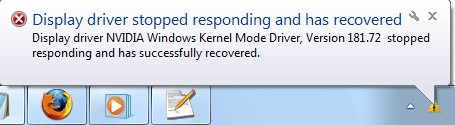

- Windows 10, Windows 8.1, Windows 8
- Windows 7 Ultimate, Windows 7 Starter, Windows 7 Professional, Windows 7 Home Premium, Windows 7 Home Basic, Windows 7 Enterprise.
- Windows Vista Ultimate, Windows Vista Home Premium, Windows Vista Home Basic, Windows Vista Enterprise, Windows Vista Business.
How to Fix "Display Driver Stopped Responding and Has Recovered" Error on Windows 10/8.1/8/7/Vista/XP
There are 10 useful solutions to fix this "Display driver stopped working and has recovered" error, such as AMD display driver stopped responding and has recovered, Nvidia display driver stopped responding and has recovered, etc. Since the issue would be aroused by one or more causes, you should try the methods till this issue is successfully fixed. All the methods are apply to all Windows OS 64-bit or 32-bit, including:
Method 1. Close the Running Programs as Many as Possible
Too many programs, browser windows, email messages, or game apps open simultaneously can use up memory and cause performance issues. Close those programs and windows that you are not using.
You can also adjust visual effects for better performance. Click Start on your computer, and select Control Panel. Type 

Method 2. Increase the GPU Processing Time
You can increase the GPU processing time by adjusting the Timeout Detection and Recovery registry value. However, you should do it carefully, because any mistake can cause conflicts and it is better to backup registry before any changes. Here is how:
1. Exit all Windows based programs.
2. Go to Start and type regedit in the Search box. In the results, double-click regedit.exe.
3. Browse to and then click "HKEY_LOCAL_MACHINE\SYSTEM\CurrentControlSet\Control\GraphicsDrivers".
4. Click New in the Edit menu list. From the drop-down menu, select QWORD (64-bit) value for the registry value for 64 bit Windows; for 32 bit Windows, select DWORD (32-bit) value. Then type TdrDelay as the Name and click Enter. Double-click TdrDelay, add 8 for the Value data and click OK.

After all these done, reboot your computer.
Method 3. Update the Latest Driver for Your Graphics Hardware
The first consideration should be graphics driver update. To reduce your time and cost, we recommend you use Driver Talent (formerly called DriveTheLife). It is a professional tool to scan your PC to identify the drivers, show you which drivers are outdated, corrupted, or missing, and then helps to update to the latest Windows drivers, including the graphics drivers.
Amendment: If your graphics hardware is new enough (or not very old), you can try to update to the latest graphics driver. This can help to fix this issue caused by the driver. However, if your graphics hardware is not new (like 2-year-old), updating to the latest driver may have corrupts and other errors (because the newest driver may bring new bugs if the driver is not well matched with the old graphics hardware). In this case, we sugguest you to download a well-matched graphics driver, not the latest one. Driver Talent will help you to get the matched graphics driver. You can click the "Repair" button. It can download and install a well-matched driver to fix the outdated, missing, corrupted and broken driver issue.
Free download and install Driver Talent on your computer.


Comments
Post a Comment